


Follow sessions
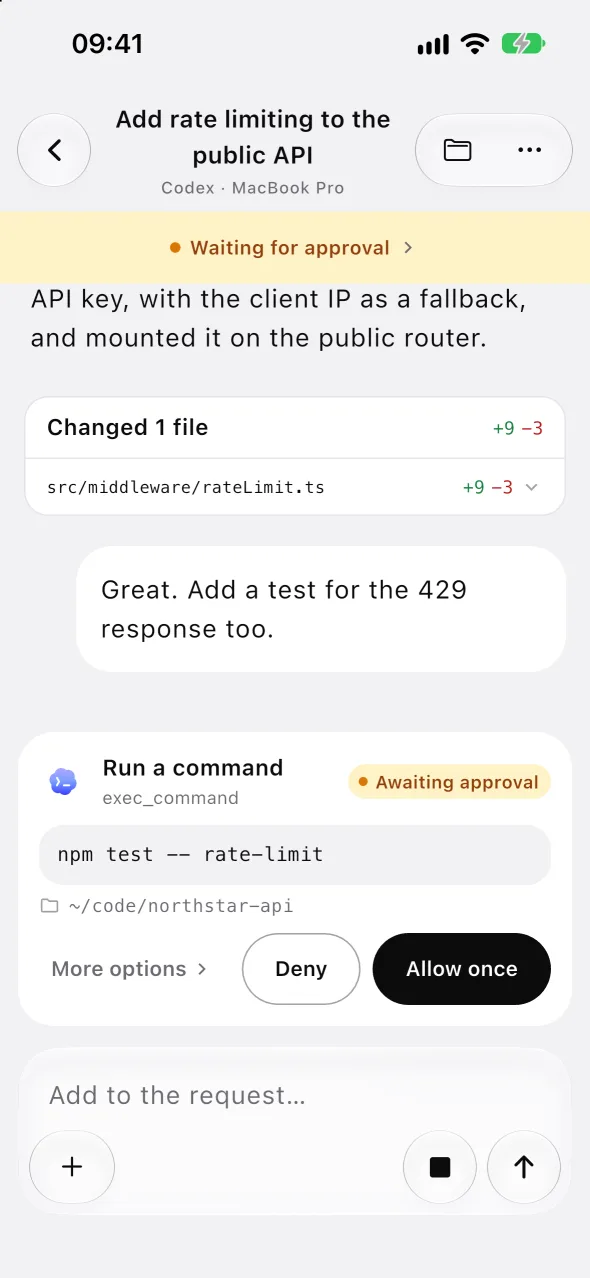
Read conversations as agents work, with commands, file edits and a per-turn file summary
AgentKib Remote lets you read, approve and continue sessions from your phone or any browser, while the agents keep running on your own computer
Read conversations as agents work, with commands, file edits and a per-turn file summary
Answer questions and approve or decline requests from the agent
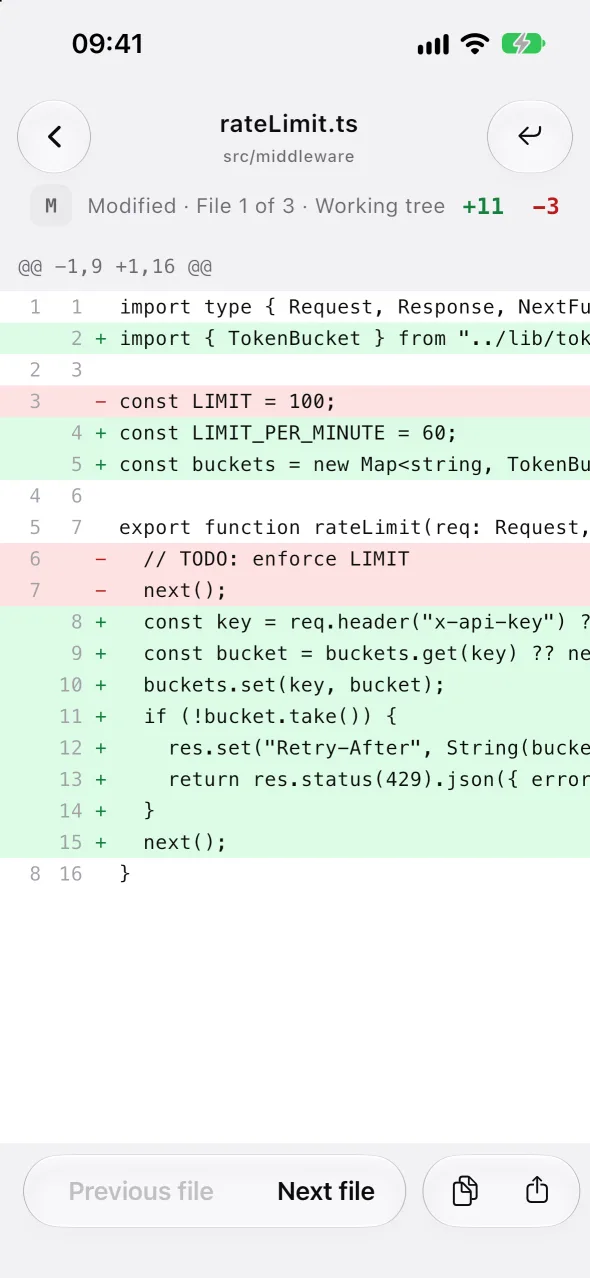
Open project files, read-only Git diffs and artifacts you have shared
Send follow-up messages and start new tasks where the agent supports it
With full control, open pages running on your computer, such as a dev server started in the session
When search is on, find message and tool text on the current computer and quote a passage into your draft
What you can control depends on the agent, platform, version and the permissions you grant
The AgentKib app connects to AgentKib on your own computer. It shows what that computer shares and only offers the actions it allows
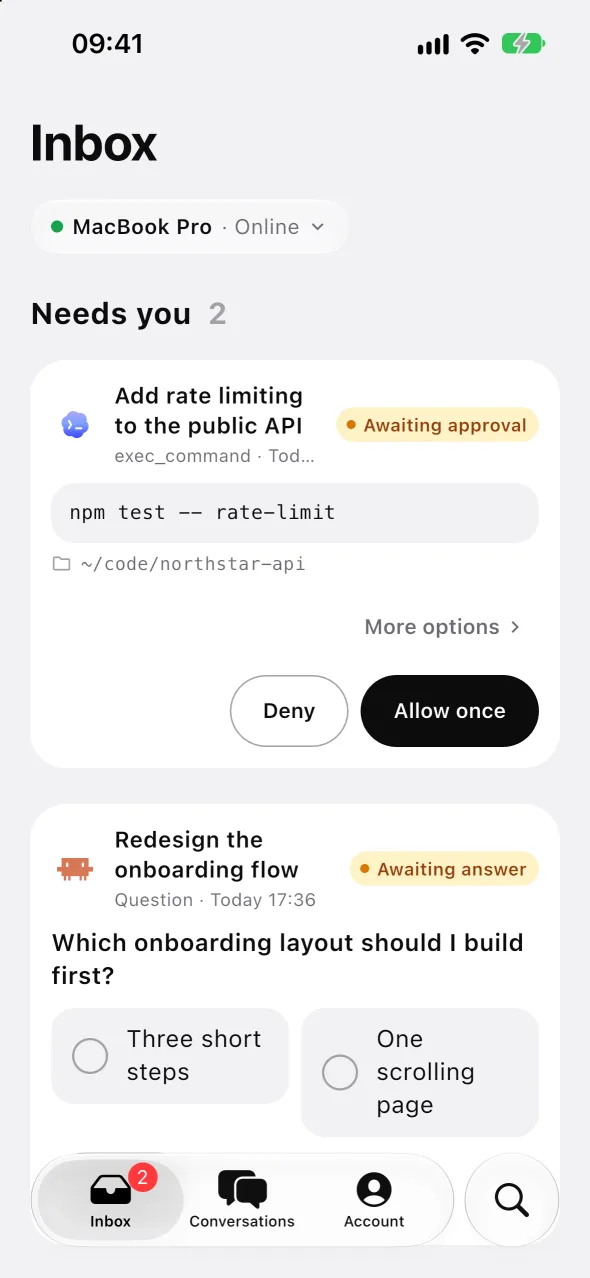
Approvals and questions from your sessions wait on the first tab, and approvals default to allow once
Watch live replies and tool activity. Send, stop, steer, queue and set goals, and change model, effort and permissions where the computer allows it
Start a Codex or Claude Code session in a workspace on your computer
Read diffs with line numbers, and preview code, Markdown, images, HTML, audio and video the computer shares
Search titles or full text on the current computer and quote a passage into your draft
Pair by QR code or address and switch between computers. On the same network the app connects directly over HTTPS, otherwise through the relay, and the last catalog stays readable offline
Sign in, sign up and recover your password in the app, with TOTP, recovery codes and sign-in sessions, or pair without an account. Each computer authorizes the phone on its own, and credentials stay in the system’s secure storage
The iOS 26 tab bar with Liquid Glass, a matching style on older iOS and Android, reduced transparency and motion, light, dark or system theme, large text and four languages
What you can do depends on the agent, the AgentKib version on your computer and the permissions you grant
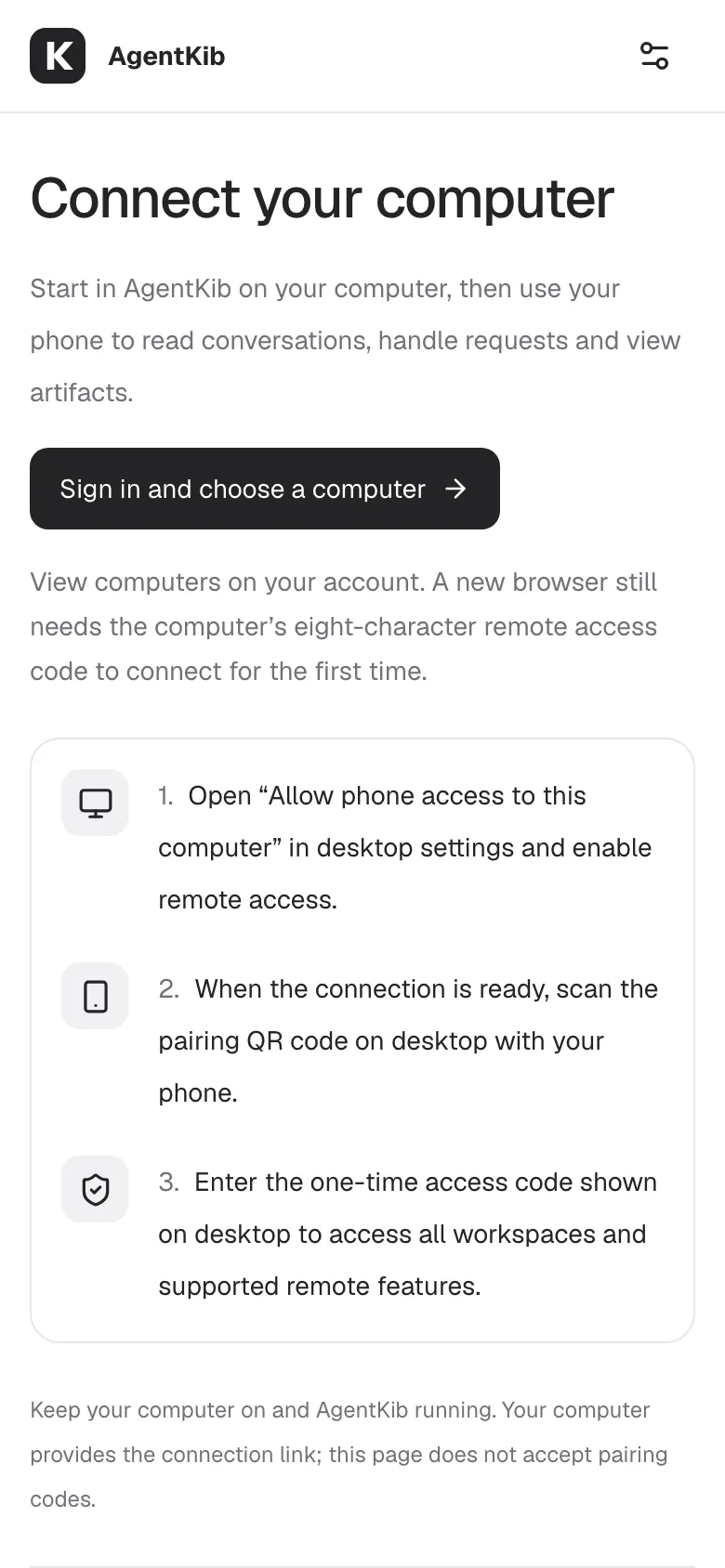
On your computer, open Settings → Remote connections → Phones and sign in. You can create an account in the browser
Choose Enable remote access and wait until it shows Ready for your phone
Pick Full control or Read-only, generate an access code, then scan it with your phone and enter the code. One valid code authorizes that level for all current and future workspaces without another confirmation on the computer, so share it only with your own devices
Change the access level or revoke a browser at any time. Pausing remote access does not stop running Codex tasks
This protection relies on trust in the domain, DNS and certificate issuance
For the hosted connection, yes, and a username and password is enough. The app can also pair with a computer without an account, and AgentKib on your computer never needs one for its local features
Yes. AgentKib must keep running on the computer. Sleep, shutdown or quitting the app ends remote access
Yes. The app switches to a direct HTTPS connection on its own. For a browser, choose and save a network interface under Settings → Remote connections → Advanced settings, then use Phones → Set up LAN direct connection. That connection is not encrypted, so use it only on a network you trust
iPhones with iOS 16 or later and Android phones with Android 8.0 or later. AgentKib Web also works in your phone’s browser
Open AgentKib Web and pair your computer